

How to Manage GrabFood and Dine-In Orders in One POS (Philippine Restaurant Guide)
Managing dine-in and delivery orders simultaneously can be challenging
for restaurants, especially during peak hours.
Imagine a familiar Friday night rush: the dining room is packed, while
the GrabFood tablet at the cashier counter keeps beeping. The cashier
must enter walk-in orders into the restaurant POS while manually typing
GrabFood orders from a separate screen.
With two order streams on separate devices, the kitchen can fall behind.
This bottleneck may increase online order cancellations and frustrate
dine-in customers with longer wait times.
GrabFood POS integration in the Philippines can help unify order
taking, food preparation, and sales reporting in one platform. This
allows restaurants to streamline operations and manage orders more
efficiently.
Why Running Delivery and Dine-In Separately Costs You Money
The “Tablet Pile-Up” Problem
A clutter of tablets at the cashier counter can create costly
inefficiencies. When delivery channels operate separately from the
restaurant POS, cashiers must re-enter GrabFood order details manually.
During busy periods, manual entry can lead to mistakes such as:
- Missing “no spicy” notes or mixing up topping choices.
- Overlooking incoming orders, which can lead to longer wait times.
Delayed or incorrect orders can result in compensation costs and may
hurt a restaurant’s rating on the Grab app.
Kitchen Confusion During Peak Hours
When delivery and dine-in orders come from separate systems, kitchen
tickets may print in different formats and at different times. Dine-in
orders print from the POS terminal, while GrabFood orders may print
through a separate tablet-connected printer.
Without synchronized tickets, kitchen staff can struggle to prioritize
orders efficiently. GrabFood orders may remain pending while drivers
wait, and dine-in guests may be overlooked.
Inventory and Reports That Never Match
When systems are disconnected, inventory data and financial reports may
not align. GrabFood sales may not automatically deduct ingredient stock
from the main inventory, depending on the setup.
Managers may then spend hours reconciling sales figures between the Grab
Merchant Center and POS reports. Without timely stock information,
restaurants may also run out of key ingredients, such as fresh milk or
beef, during a shift.
What “One POS” Actually Means: How the Order Flow Works
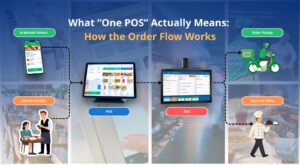
The “One POS” approach brings order handling into a more unified
workflow.
Orders Land in One Queue
Instead of monitoring multiple devices, staff can manage online delivery
and dine-in table orders from a centralized POS queue. Depending on the
integration, cashiers can accept GrabFood orders or configure
auto-acceptance directly in the POS.
One Kitchen Screen
After an order is accepted, its details can be sent to a Kitchen Display
System (KDS) or a local-network kitchen printer. Kitchen staff can track
items in real time, with order labels helping distinguish dine-in from
GrabFood orders.
One Sales Record
Transactions across supported sales channels can be recorded in a
centralized system. At the end of the day, managers can review cash,
digital payments, and GrabFood sales in consolidated reports instead of
manually combining separate records.
Learn more about this setup on the Food Delivery Integration solution
page.
6 Benefits of Managing GrabFood and Dine-In Orders in One POS
1. Fewer Order Errors and Less Manual Re-Entry
With an integrated setup, GrabFood orders can flow into the POS without
requiring cashiers to type each item again.
Example: A customer orders two Chicken Rice meals through
GrabFood—one without onions and another with extra rice. Order details
and special requests can pass into the system, helping the kitchen
prepare the meals correctly.
2. Faster Kitchen Ticket Times
Sending orders directly to the Kitchen Display System can help kitchen
staff begin preparation sooner.
Example: During the lunch rush, the kitchen receives dine-in orders
from three tables and two GrabFood orders at nearly the same time.
Instead of waiting for a cashier to copy delivery orders from a tablet,
staff can receive synchronized tickets and prepare orders according to
the restaurant’s workflow.
3. More Consistent Inventory Deduction Across Channels
When integration and recipe settings support it, sales from GrabFood and
dine-in can deduct the corresponding ingredient quantities from
inventory.
Example: A milk tea shop sells 25 Brown Sugar Milk Tea drinks
through GrabFood and another 35 in-store. If the recipe settings use the
same quantity of pearls per drink, the system can account for ingredient
usage across all 60 drinks. This depends on successful integration and
accurate recipe configuration.
4. One Menu to Update
A connected setup can help staff manage menu prices and item
availability from one place, depending on the integration’s supported
features.
Example: A milk tea shop runs out of brown sugar pearls during the
evening rush. If sold-out status syncs with GrabFood, customers are less
likely to order drinks the shop cannot prepare, reducing manual
follow-up by staff.
5. Easier End-of-Day Reconciliation
A centralized report can help managers review cash revenue, e-wallet
payments, and GrabFood sales in one place.
Example: At closing, the POS report shows ₱18,000 in dine-in sales
and ₱7,000 in GrabFood sales. The manager can review ₱25,000 in total
sales before reconciling delivery fees, discounts, and the actual
GrabFood payout. These figures are illustrative, not actual results from
a specific restaurant.
6. Less Training for New Staff
A single POS interface can reduce the number of separate systems new
hires need to learn.
Example: A new cashier learns how to enter dine-in orders, check
incoming GrabFood orders in the POS, and monitor their progress to the
kitchen. Instead of manually copying each delivery order from another
tablet, the cashier can focus on checking order details and handling
exceptions.
How to Set Up GrabFood and Dine-In Integration
Follow these six steps to prepare for an integrated workflow.
Step 1: Audit Your Current Setup
Review your hardware, printer placement, internet connectivity, and
current order-handling bottlenecks.
Step 2: Standardize Your Menu
Check item names, categories, prices, and modifiers so your POS menu
matches your GrabFood menu.
Step 3: Connect the Delivery Integration
Activate the delivery integration module in CukCuk POS and link it with
your Grab Merchant account, following the required setup process.
Step 4: Configure Kitchen Routing
Set up ticket printing or the Kitchen Display System to help staff
distinguish dine-in and GrabFood orders.
Step 5: Train Staff on One Workflow
Train employees to use the unified process and provide a quick-reference
guide for handling orders and driver handovers.
Step 6: Test Before Peak Hours
Run test orders during a quieter period to verify that order details
reach the right place before using the setup during a rush.
Actual setup workflows may vary by restaurant configuration. Contact
CukCuk Philippines for tailored technical support.
Track Profit by Channel, Not Just Sales
Revenue shown in the GrabFood merchant app does not necessarily
represent profit. Delivery commissions, packaging, and promotions can
affect margins, so restaurant owners should review performance by sales
channel.
Reports to Check Weekly
Monitor these three core metrics in your POS reports, where available:
- Sales by channel: Revenue from GrabFood, dine-in, and takeaway.
- Top items per channel: Best-selling items in each channel, since
dine-in favorites may not perform as well for delivery. - Average order value (AOV): Average spend per order, which can
help inform combo offers.
Use the Data to Make Decisions
Use reporting insights to evaluate whether to:
- Adjust online menu pricing to account for delivery-related costs.
- Remove low-margin items from the delivery menu.
- Create loyalty offers that encourage delivery customers to visit the
restaurant.
Always check the latest commission rates through official Grab Merchant
resources before making financial calculations.
What to Look for in a POS with Delivery Integration
When choosing a restaurant POS in the Philippines, use this checklist to
compare solutions:
- Direct delivery-platform integration: Supports connection with
platforms such as GrabFood. - Real-time order synchronization: Reduces the need for manual
order entry. - Kitchen Display System or multi-printer routing: Helps route
orders to the appropriate kitchen station. - Offline mode: Check whether the system can continue supported
tasks during internet interruptions. - Inventory and recipe-level deductions: Supports stock deduction
based on configured recipe quantities. - Cloud-based multi-branch reporting: Helps centralize reporting
across branches. - Local support: Check for accessible technical support and a
Philippine hotline. CukCuk offers 24/7 support. - Mall accreditation: If you operate in a mall, check requirements
for sales-data integration at locations such as SM Malls, Ayala
Malls, and Robinsons.
Confirm feature availability and compatibility with your specific setup
before choosing a solution.
Which Restaurants Benefit Most?
Quick-Service Restaurants
Fast-casual restaurants with high GrabFood order volumes can benefit
from a more coordinated workflow that helps keep orders moving.
Cafés and Bakeries
These businesses may need accurate ingredient tracking and timely
updates when popular items become unavailable.
Milk Tea and Boba Shops
Complex modifiers for toppings, sugar levels, and ice options make
accurate order transmission especially important.
Full-Service Restaurants
Restaurants with table service can benefit from clearer coordination
between dine-in orders and driver pickups.
Frequently Asked Questions
Can I Accept GrabFood Orders Directly in My POS?
When CukCuk POS is integrated with GrabFood, delivery orders can appear
on the POS screen. Cashiers may accept orders manually or enable
auto-acceptance, depending on the configured integration.
Will Delivery Orders Automatically Deduct Inventory?
Inventory deduction depends on the integration and the restaurant’s
configuration. Where supported, completed GrabFood orders can deduct
ingredient stock according to configured recipe quantities. Accurate
recipe settings are essential.
Does the POS Still Work if the Internet Goes Down?
CukCuk POS offers Offline Mode for supported operations. During an
internet outage, restaurants can continue taking dine-in orders,
printing kitchen tickets over a local network, and accepting cash
payments. Data syncs to the cloud when connectivity returns, according
to the system’s offline workflow.
Can I Manage Multiple Branches and Delivery Channels from One Dashboard?
CukCuk’s cloud POS supports centralized multi-branch management.
Available reporting and delivery-channel visibility depend on the
configuration and enabled integrations.
How Long Does Setup Take?
Setup time depends on the restaurant’s menu, hardware, integration
requirements, and staff training. The original guide estimates around
1 to 3 business days for integration and configuration; confirm the
timeline with the CukCuk Philippines team.
Do I Need New Hardware?
Not necessarily. CukCuk POS can work with supported hardware such as
touch POS terminals, iPad or Android tablets, Windows PCs, and
compatible thermal receipt printers. Confirm compatibility before
installation.
Manage GrabFood and Dine-In Orders with CukCuk POS
Managing GrabFood and dine-in orders does not have to become an
operational headache. With a suitable integrated setup, restaurants can
work toward a simpler process: one queue, one kitchen, one report.
See how CukCuk can help streamline restaurant operations. Get a FREE
Demo or See Pricing.